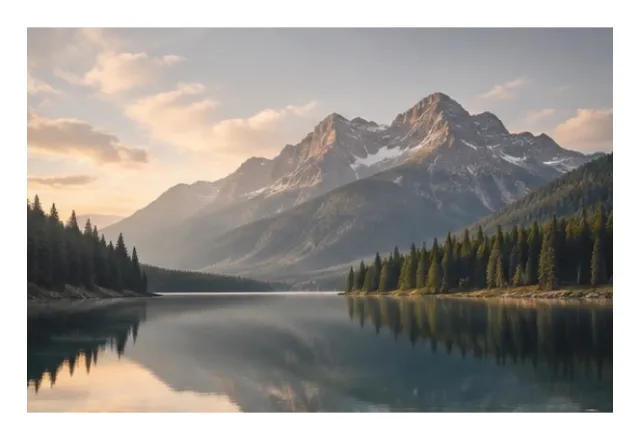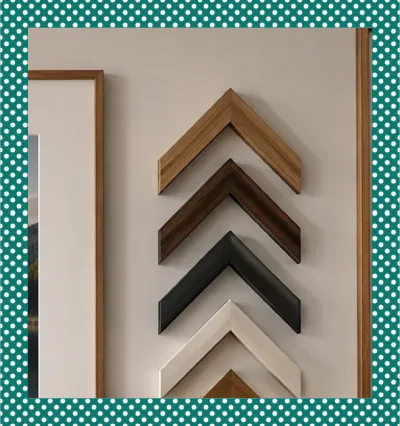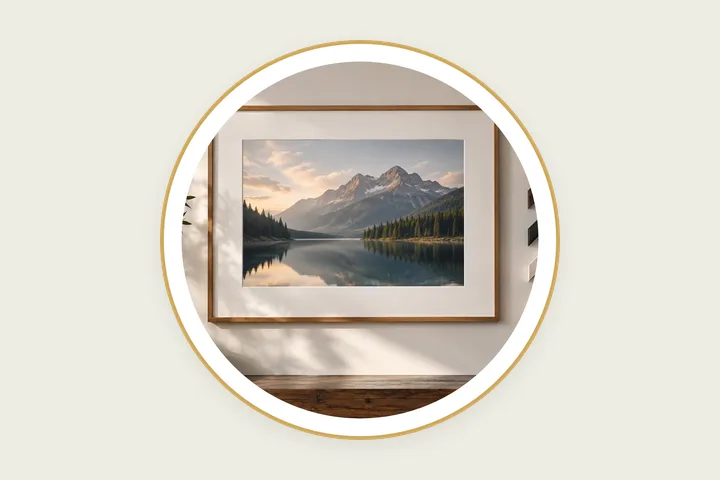
A photo in a shape, measured like a frame
This page opens the studio on the Circle style. The photo is cut to a circle and a ring is drawn round it — white with a thin gold rim to start with, any colours you like after that. Oval, Heart and Arch sit beside it in the Shapes family, and every one of them uses the same controls: the ring's width, its colour, an outer rim, an inner line, and the photo's zoom and position inside the shape.
The ring is not a sticker laid on top. It is an outline drawn the band's width outside the shape, so it stays even all the way round and stays sharp however large the file is. The heart is built from a square turned on its point with a circle on each upper edge, which is what lets its ring be exactly the same width on the straight sides, round the two lobes and round the point at the bottom.
Placing the photo
A circle and a heart need a part of the photo with their own proportions, so the studio takes the largest piece of that shape from the middle of your photo. Zoom takes a smaller piece; the two Move sliders slide it across what is left. The file uses the photo's own pixels for that piece — zooming never blows a photo up, it just saves a smaller circle.
- 1Open the photo. It is set in a circle with a white ring.
- 2Pick Oval, Heart or Arch from Shapes if you want another shape.
- 3Zoom and move until the right part fills the shape.
- 4Choose the ring colour, then save as PNG for clear corners.
Limits worth seeing before export
- A shape always crops: a circle shows a square part of the photo, a heart a slightly wide one. Nothing outside the shape is saved.
- The oval's band is an ellipse drawn a fixed distance larger, so on a long, thin oval the band is very slightly wider at the ends than at the sides.
- Placement is by hand. The site does not detect faces yet.
Questions about the rendered frame
What size is the saved file?
A circle uses a square from your photo at its own resolution, plus the ring. A 4000 × 3000 photo gives a 3000 × 3000 circle, and a 60 px ring makes the file 3120 × 3120. Zooming in uses a smaller part of the photo, so the file gets smaller; it is never enlarged.
How do I choose which part of the photo shows?
Use Zoom, then Move left – right and Move up – down under Border. Each slider also takes the arrow keys. The crop is shown on the stage as you go and is exactly what the file contains.
Are the corners transparent?
Yes, in PNG and WebP everything outside the ring is clear. JPG has no transparency, so the corners become white, or the backdrop colour if you set one under Finish.
Can it find the face and centre the circle on it?
Not yet. Placing the shape is done with the zoom and move sliders; automatic face centring is planned but is not in the site today.