A mat, measured like one
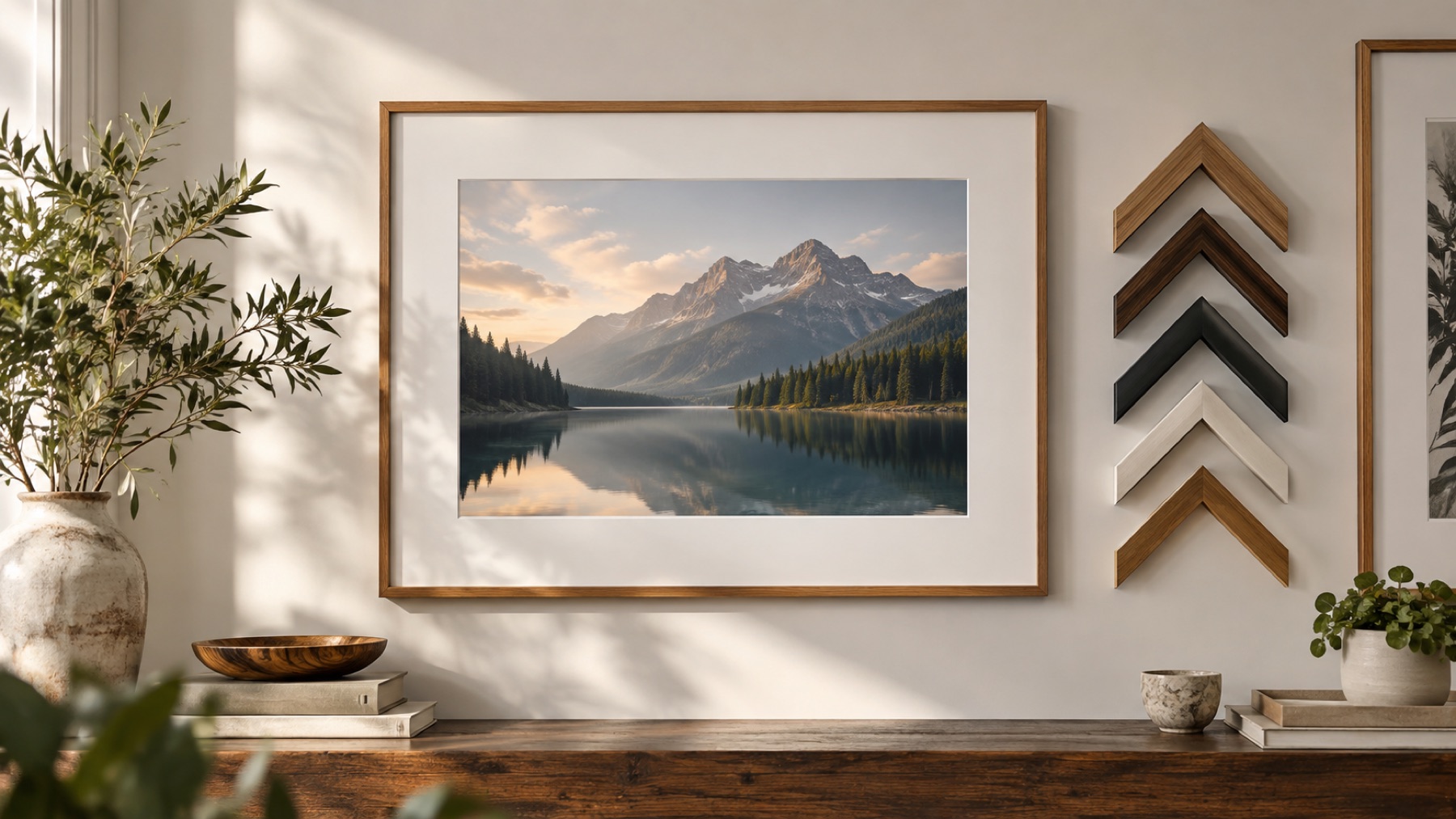
A mat is what a framer puts between a print and the glass: a wide flat border with an angled cut at its inner edge, where the white core of the board shows as a thin bright line round the picture. This page opens the studio on a single mat, 40 mm wide at 300 DPI, so the file comes out ready for a print of a known size. The width can be in millimetres, inches, pixels or percent, and the readout prints the conversion as you type.
Four mat styles share one set of controls. Bottom weight makes the bottom wider than the sides, 1.15 times by default. Bevel sets the width of the cut. V-groove draws a fine incised line in the mat a set distance out from the picture. Second mat reveals a narrow band of a second board inside the first. Outer moulding puts a plain shaded moulding round the outside. Every colour — mat, core, second mat, moulding — is an ordinary colour slot, and Match photo works on all of them.
Matting a photo
- 1Open the photograph. It is set in a 40 mm white mat at 300 DPI.
- 2Type the mat width and the DPI your printer uses.
- 3Pick a mat style, or set Bottom weight, V-groove, Second mat and Outer moulding.
- 4Save at full size for printing.
Limits worth seeing before export
- A wide mat on a small picture makes a large file for a small print. Check the output size on the Save button before you save.
- The bevel is drawn, not photographed: it reads as a cut core at print size, but it is not a real three-dimensional edge.
Questions about the rendered frame
- Why is the bottom of the mat wider?
- It is the framer’s convention: a mat with a slightly heavier bottom puts the picture a little above the middle, which looks centred to the eye. It starts at 1.15 times the other sides; Bottom weight under Border changes it, and 1 makes all four sides equal.
- How do I size the mat for a real frame?
- Choose mm or in, type the mat width and set the DPI you will print at — 300 is the usual lab figure. The readout prints the conversion, for example 472 px = 40.0 mm at 300 DPI. The Save button shows the file’s full size.
- What is a double mat?
- Two mats, one inside the other, with a thin band of the second colour showing round the picture. Choose the Double mat style, or raise Second mat on any mat style, and pick the second colour under Colour.
- Can I put a frame round the mat?
- Raise Outer moulding for a plain moulding round the outside of the mat, in any colour, with light and shade on its four sides. Ornate mouldings are not drawn yet.
Other frame families
- Add white borderAn exact white border in pixels, percent, millimetres or inches, on every side or each side.
- Passport photo borderPassport-size copies on a 4 × 6 in or A4 sheet with cut lines, and when not to add a border.
- Drop shadowDrop, long and floating shadows with an angle, a distance and a softness; the canvas grows to hold them.